.

MX-20 HoTT

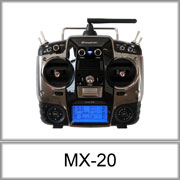
Graupner MX-20 HoTT

INFO:

The HoTT telemetry is only supported by FlightControl 2.1.
To choose the HoTT-Receiver you need the latest software! This is possible from Version 0.86 (for FlightCtrl) and KopterTool Version 1.76.
If you use a NaviCtrl (V1.1 oder V2.0) you also need the latest software (from Version 0.26) on it.

Please use the HoTT transmitter and receiver only with the software version up to V3.
Up to this version you can can use the speech output and the telemetry of the Kopter.

Please DON'T use the latest software V4 of Graupner for the transmitter/receiver!
At the moment you can NOT use the speech output and the telemetry of the Kopter with this version.

The MX-20 HoTT is an ideal transmitter for the MikroKopter.

Data:


http://mikrocontroller.com/files/HoTT/MX-20_pult_blau.jpg

http://mikrocontroller.com/files/HoTT/MX-20a.jpg

http://mikrocontroller.com/files/HoTT/MX20_connections.jpg

Manual for the MX-20

The manual can be downloaded here: Programming Manual

Configure the transmitter

Choose a language

The language can be selected at the transmitter. This can be done in the menu HIDDEN MODE.
Here are the steps:

(See also english manual "33116_mx16_HoTT_2_gb.pdf", Page 26)

Set Stick Mode

Change the transmitter to stick mode 2. With this the transmitter will be set to "gas left".

http://mikrocontroller.com/files/HoTT/SET.gif http://mikrocontroller.com/files/HoTT/base.gif http://mikrocontroller.com/files/HoTT/mode2.gif

Channelassignment at mode2:

Spring in the transmitter

By default there is a spring at the gas stick which keeps it always in the center position.

If you want to fly with vario-height regulator all the time, you don't need to remove the spring.

You should set the "Vario Neutral point" to 127 in the setting (EasyConfig):

http://mikrocontroller.com/files/pictures/EasyCfg_pfeil.gif

If you prefer a notch instead of a spring, you can read in the Manual on page 18.

Binding

Transmitter and receiver have to be bound together, so that the receiver only reacts to that transmitter.

http://mikrocontroller.com/files/HoTT/bind1.gif http://mikrocontroller.com/files/HoTT/bind4.gif http://mikrocontroller.com/files/HoTT/bind2.gif http://mikrocontroller.com/files/HoTT/bind3.gif

Set the receiver to sum-signal

The Mikrokopter needs a so-called sum-signal. All channels of the receiver are included in it. This makes the wireing a lot easier compared to normal servo-receivers.

http://mikrocontroller.com/files/HoTT/ESC.gif http://mikrocontroller.com/files/HoTT/telemetry.gif http://mikrocontroller.com/files/HoTT/SUMO.gif http://mikrocontroller.com/files/HoTT/SUMO12.gif

INFO

If you hold down the button (accidentially) at the receiver while connecting, the "SUMO 12" setting will be deleted. This can be also happen if you connect the receiver with a powered up Mikrokopter and hold down the button. In this case you have to set this setting again.

INFO

If you doesn't have a number behind SUMO, you have to update the receiver. How to update the receiver you can see here: Update

Assign channels

Here the required switches and potis of the transmitter will be linked with the transmitted channels.

http://mikrocontroller.com/files/HoTT/channel1.gif http://mikrocontroller.com/files/HoTT/channel2.gif http://mikrocontroller.com/files/HoTT/channel3.gif http://mikrocontroller.com/files/HoTT/channel4.gif

Examples for the channel assignment

http://gallery.mikrokopter.de/main.php/v/tech/MX-20.jpg.html

Example Setting Download

(!) A "ready to use" Setting like above for MODE 2 you can download here: MX-20

After unpacking the downloaded .zip-file, you can copy the folder "Models" directly to the SD-card.
If there is already an folder "Models" / "mx-20" on the SD-card, you can copy the "aMK-Set.mdl" directly into this folder.

How to import/export a setting on the SD-card, you can read in the manual on page 22 + 53/54.

INFO:
In this setting the clock named Stop is activated. Once the throttle stick is moved up the clock starts. If the throttle stick is down, the clock stopps. To set the clock back to zero, you need to push together the up/down button of the right Touch-pads. Or swich off/on the transmitter.


TIPP: If you will use a other Mode as Mode 2, you can use the "ready to use" Setting too.
Load the setting into the transmitter and change the Mode manually.
The sticks will then have the function of the Mode (1,3,4) you set. All other channels/switch are so as in the example.


Check Channels in the KopterTool

You can check the channel assignment in the KopterTool, by using the corresponding switch/poti at the transmitter and observe the amplitude of the signal.

http://mikrocontroller.com/files/HoTT/EasyChannel.gif

Note:

http://mikrocontroller.com/files/HoTT/GR16_b.gif

http://gallery.mikrokopter.de/main.php/v/tech/FC21_Jeti_1.jpg.html

Receiver

Receiver GR-12

The GR-12 HoTT is a 6-channel receiver, which you can upgrade to 16 channels via sumsignal (depends on transmitter).

The range is with this receiver according Graupner 2000mtr.

Output for the sum-signal

http://gallery.mikrokopter.de/main.php?g2_view=core.DownloadItem&g2_itemId=92838&g2_serialNumber=2

Telemetry

The receiver has a separate data channel at output 5 for the MikroKopter telemetry:

http://gallery.mikrokopter.de/main.php?g2_view=core.DownloadItem&g2_itemId=92844&g2_serialNumber=2

To receive the telemetry over here, you have to change output 5 first.
For this, press in the main window ESC for 3sec. We see then the following menu:

http://gallery.mikrokopter.de/main.php?g2_view=core.DownloadItem&g2_itemId=92854&g2_serialNumber=2

Now select SETTING & DATA VIEW and change to RX CURVE.
There you change 5CH FUNCTION into SENSOR:

http://mikrocontroller.com/files/HoTT/CH5Sensor.jpg

Receiver GR-16

The GR-16 HoTT is an 8-channel receiver, which you can upgrade to 16 channels via sumsignal (depends on transmitter).
The range is with this receiver according Graupner 4000mtr.

Output for the sum-signal

http://mikrocontroller.com/files/HoTT/GR16_a.gif

Telemetry

The receiver has a separate data channel at the other side for the MikroKopter telemetry:

http://mikrocontroller.com/files/HoTT/GR16_b.gif

Receiver GR-24

The GR-24 HoTT is an 12-channel receiver, which you can upgrade to 16 channels via sumsignal (depends on transmitter).
The range is with this receiver according Graupner 4000mtr.

Output for the sum-signal

http://gallery.mikrokopter.de/main.php?g2_view=core.DownloadItem&g2_itemId=93859&g2_serialNumber=2

Telemetry

The receiver has a separate data channel at the other side for the MikroKopter telemetry:

http://gallery.mikrokopter.de/main.php?g2_view=core.DownloadItem&g2_itemId=93854&g2_serialNumber=2

Connection of the receiver to the FlightCtrl2.1

The receiver is connected with a PPM-cable and a second cable for the telemetry to the FlightCtrl:

http://gallery.mikrokopter.de/main.php/v/tech/FC21_Jeti_1.jpg.html

As receiver choose "Graupner HoTT" in the KopterTool:

http://mikrocontroller.com/files/pictures/EasyCfg_channel.gif

Voice-output

For the voice-output you can plug a customary earphone into the MX-20 HoTT.

With the voice-output the MikroKopter can "tell" its values to the pilot. It simulates the various sensors of the HoTT-System

The output can be retrieved via a switch on the transmitter.

In addition there is:

Select a sensor

Currently you can select just one of four (simulated) sensors.

http://mikrocontroller.com/files/HoTT/voice4.jpg

Outputs of the Sensors 'General Module'

The sensor "General module" currently shows the most data - therefor its recommended to choose this one.

To set the following values, you have to get back to the window "telemetry" and select the entry "VOICE TRIGGER" at the bottom.
Select it with "SET".
In the window "VOICE TRIGGER" change to "SENSOR" and confirm with "SET".
Now the window with the sensor is open. If you scroll down, the lower display appears.

If you select this menu ("General module"), you can let announce following values:

http://mikrocontroller.com/files/HoTT/general_voice_select.jpg

Summarized values

http://mikrocontroller.com/files/HoTT/general_telemetry_1.jpg

http://mikrocontroller.com/files/HoTT/general_telemetry_2.jpg

  1. Current LiPo voltage

  2. Signal-strength
  3. T1: temperature of the coldest Brushless-Ctrl
  4. T2: temperature of the warmest Brushless-Ctrl
  5. Compass-direction (2.66 -> 266 degrees)

  6. Distance to the starting point
  7. Lipo-voltage
  8. Height
  9. Elevation
  10. Current
  11. Consumed capacity in mAh
  12. Home-direction(2.66 -> 266 degrees)

Display voltage and temperature

http://mikrocontroller.com/files/HoTT/general_temperature2.jpg

There are two menus.

Display of the capacity and height

http://mikrocontroller.com/files/HoTT/battery.jpg

Display of the height

http://mikrocontroller.com/files/HoTT/telemetry_altitude.jpg

Display of the distance

http://mikrocontroller.com/files/HoTT/general_rpm.jpg

Here now the GPS-distance to the starting point will be displayed. The unit 'RMP' is wrong.

The small number beside the bar shows the max. distance.

Outputs of the Sensor 'Electric Air Module'

If you select this sensormodule, following values will be announced:

http://mikrocontroller.com/files/HoTT/electric_voice_select.jpg

Summarized values

http://mikrocontroller.com/files/HoTT/air_telemetry1.jpg

  1. Lipo-voltage
  2. Current
  3. Consumed capacity in mAh
  4. Compass-direction (2.70 -> 270 degrees)

  5. Elevation
  6. Signal-strength
  7. T1: Temperature of the coldest Brushless-Ctrl
  8. T2: Temperature of the warmest Brushless-Ctrl
  9. Height

Display of the height

http://mikrocontroller.com/files/HoTT/telemetry_altitude.jpg

Display of the Battery

http://mikrocontroller.com/files/HoTT/battery_air.jpg

Output of the sensor 'Vario Module'

If you select this sensormodule, following values will be announced:

http://mikrocontroller.com/files/HoTT/vario_voice_select.jpg

http://mikrocontroller.com/files/HoTT/telemetry_altitude.jpg

Output of the module 'GPS'

If you select this sensormodule, following values will be announced:

http://mikrocontroller.com/files/HoTT/voice9.jpg

Display of the height

http://mikrocontroller.com/files/HoTT/telemetry_altitude.jpg

Summarized values

http://mikrocontroller.com/files/HoTT/gps_telemetry.jpg

Adjustment of the spoken values

At the transmitter you can select, what has to be announced. By default it would be spoken too many values, therefore we have to disable most of them:

Sensor Select

The FlightCtrl can 'simulate' different sensors.

http://mikrocontroller.com/files/HoTT/ESC.gif http://mikrocontroller.com/files/HoTT/voice0.jpg http://mikrocontroller.com/files/HoTT/voice4.jpg

Voice Trigger and Vario-tone

http://mikrocontroller.com/files/HoTT/ESC.gif http://mikrocontroller.com/files/HoTT/voice1.jpg http://mikrocontroller.com/files/HoTT/voice2.jpg http://mikrocontroller.com/files/HoTT/voice3.jpg


Assign a switch for the vario-tone:

http://mikrocontroller.com/files/HoTT/vario_switch.jpg http://mikrocontroller.com/files/HoTT/voice3.jpg

If this switch is 'ON', the elevation of the vario-height-regulator will be emitted as tone.


http://mikrocontroller.com/files/HoTT/voice5.jpg http://mikrocontroller.com/files/HoTT/voice6.jpg


http://mikrocontroller.com/files/HoTT/voice7.jpg http://mikrocontroller.com/files/HoTT/voice8.jpg


http://mikrocontroller.com/files/HoTT/voice9.jpg http://mikrocontroller.com/files/HoTT/voice10.jpg

(Depending on the sensor you have set, you can enable/disable the announcements)

Recall of the spoken values and Bugfix

If you press the corresponding button for the voice-output (like described above), the selected values will be spoken.

Unfortunately the MX-20 transmitter don't retrieve the speech-values of the MikroKopter, when the text-telemetry-display is displayed. Graupner have to change this. This is no problem of the MikroKopter-tool.

If the speech has to be transmitted, leave the text-telemetry with ESC.

http://mikrocontroller.com/files/HoTT/Voice_ESC.jpg

Now you can let announce the values by pushing the button.


If you want to see the text-telemerty, you have to confirm with "SET", to switch to the receiver display.

http://mikrocontroller.com/files/HoTT/Voice_SET.jpg

/!\ Attention: If you are in the text-telemetry, no values will be announced.

{i} One exception is the "Low-voltage-warning": The voice-output "low-voltage" appears in every menu.

Text-telemetry

http://mikrocontroller.com/files/HoTT/ESC.gif

http://mikrocontroller.com/files/HoTT/goto_telemetry.jpg

Alternative:

http://mikrocontroller.com/files/HoTT/pfeil.gif

MK-Menüs

Settings Overview

Here you can get a quick overview of the used setting

http://mikrocontroller.com/files/HoTT/HoTT_Setting_2.gif

{i} If Looping or Heading-Hold is activated there will be a warnung at the bottom

Status

http://mikrocontroller.com/files/HoTT/text_telemetry.jpg

GPS-Mode symbol

A symbol shows the actual GPS-Mode:

Vario - symbol

This shows the setpoint of the altitude control. (vario mode only)

The background of the symbol is black, if the altitude control is activated.

Status temperatures

http://mikrocontroller.com/files/HoTT/Hott_Status_2.gif

Errormessages in plain text

In the case of an error, you hear a warning and a text will be displayed:

http://mikrocontroller.com/files/HoTT/ERR_H1.gif

http://mikrocontroller.com/files/HoTT/ERR_H2.gif

See also: ErrorCodes

Control-stick without function

It can happen, that on the transmitter the left and the right control-stick has no function in one (or both) direction(s).
It's may be caused by a misadjustment of the stick-calibration.

How can you check this?

Is the calibration of the control-sticks misadjusted or not correct they mostly do not have any level-peak and no function.
To check this you need to switch first to the menu "Servo display". That can be done either way over the menu,
or you push the buttons < > of the left Touch-Button in the same time.

If a control-stick will be moved you will see here a peak of the appropriate channel.
If there is no reaction that specific control-stick is not calibrated.

To calibrate the control-stick you need to open "Hidden Mode".
Into that mode you can switch as follows: On the left Touch-Button hold the arrow-buttons up/down at the same time and push the "SET-Button.

Here you need to choose the entry "STICK CALIBRATION".
After the calibration of the appropriate control-stick you should see under "Servo Display" a function again.

How to do it is also written in the instruction on the pages "28/29/30".


See also:


en/HoTT (last edited 19.03.2012 10:19 by LotharF)